Zones, rules, and a checkout that holds them.
Set up your first rule in about three minutes. Zoned keeps it in force on your storefront and at checkout, and records every change.
- 1
Make a zone
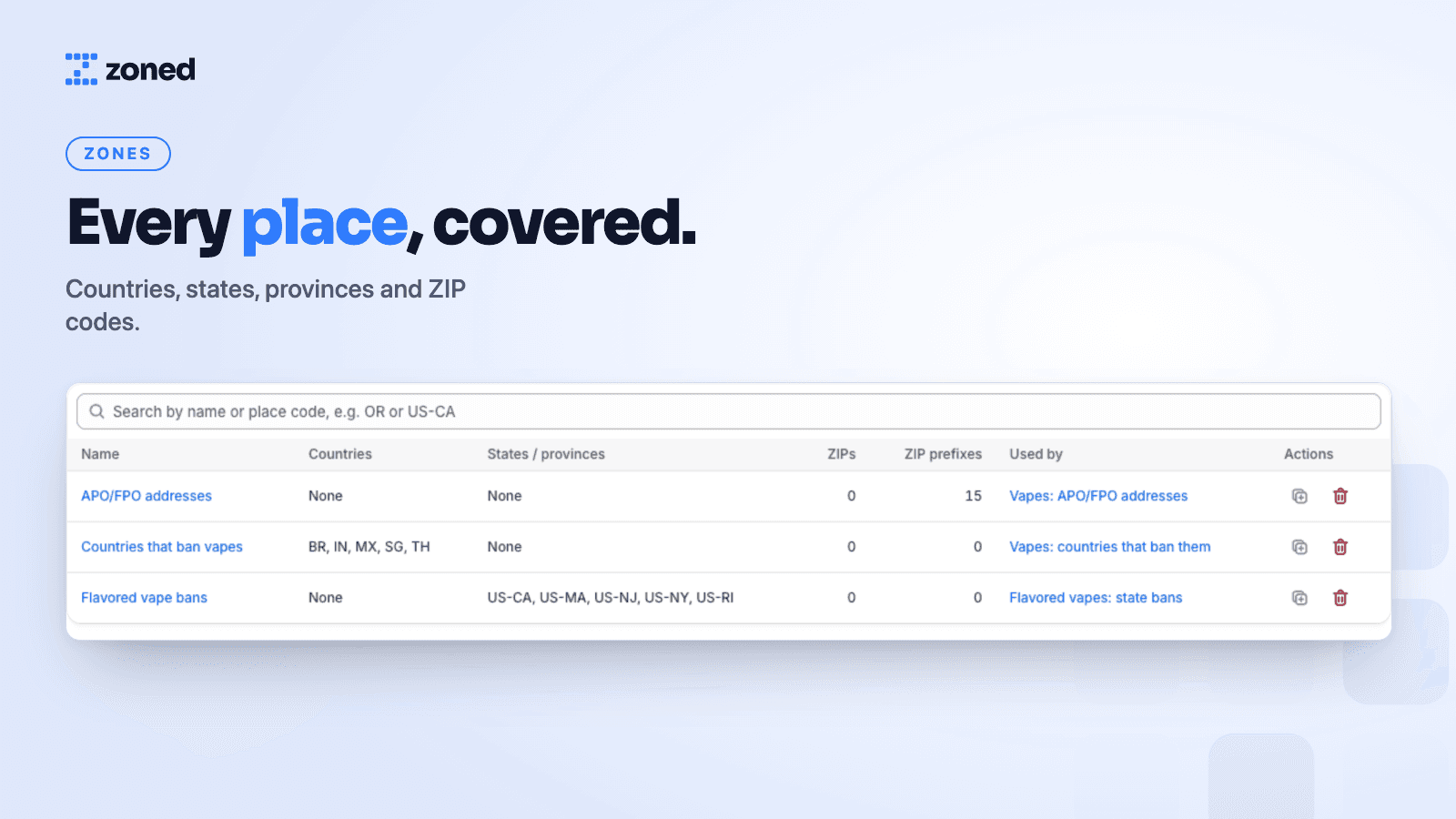
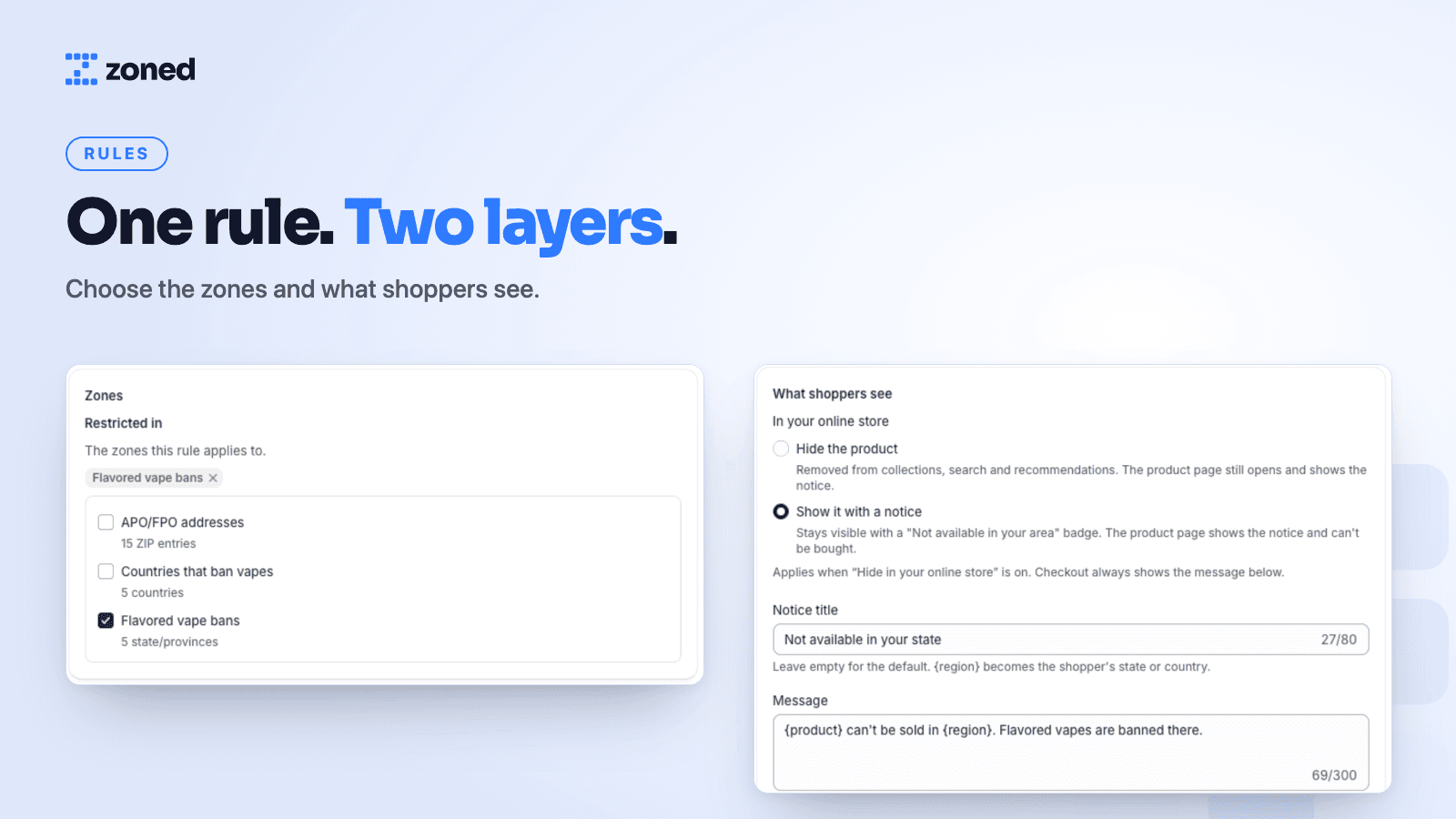
A zone is a group of places where something can't be sold: countries, states and provinces, single ZIP codes, or ZIP prefixes like military APO/FPO addresses. Name it after the law, like “Flavored vape bans”.
- 2
Write a rule
Pick what's restricted (products, collections or tags), the zones it's restricted in, and the message shoppers see. Choose whether the storefront hides the product or shows a notice.
- 3
Checkout holds it
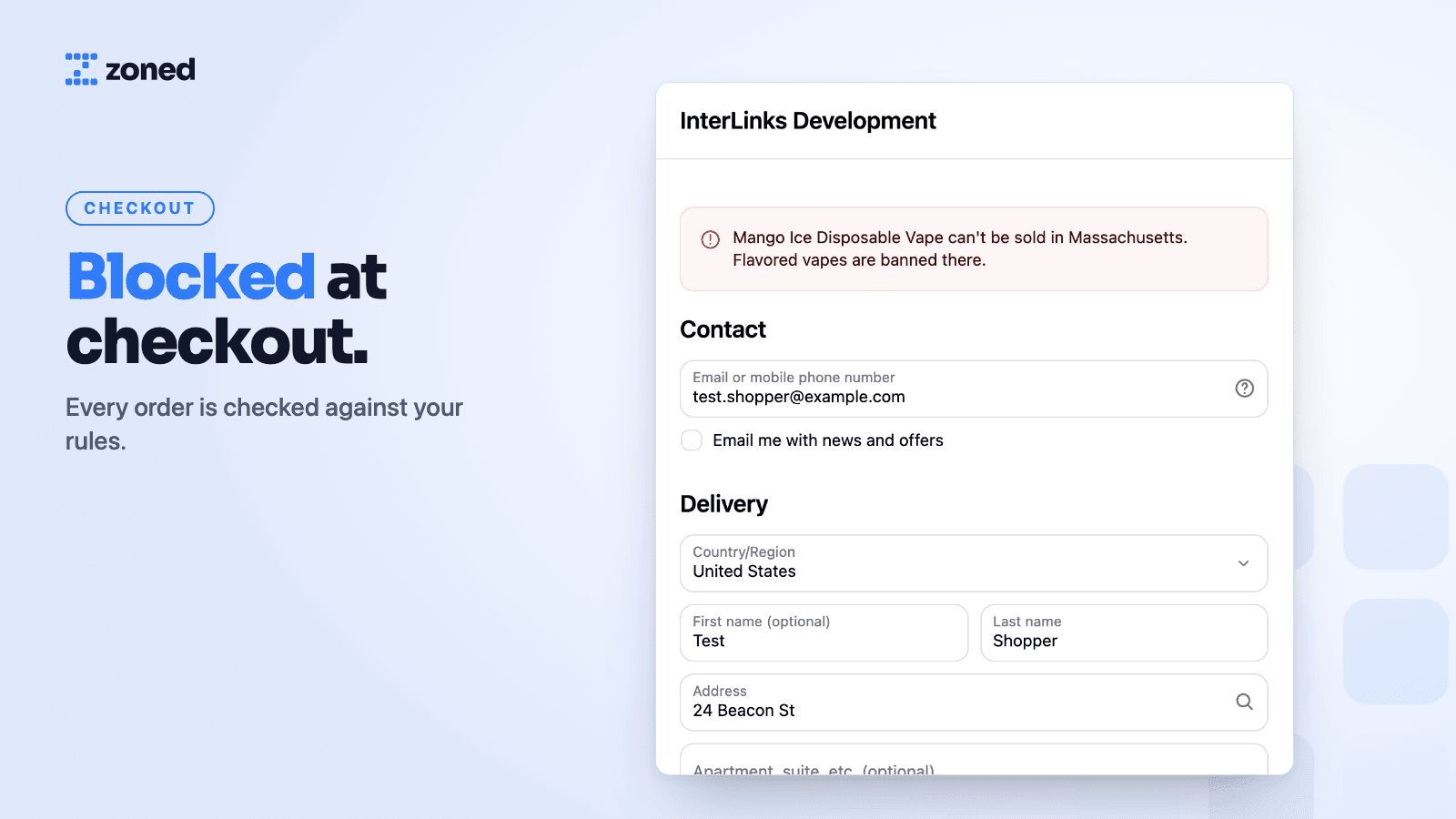
Zoned hands your rules to Shopify's checkout. Every order's shipping address is checked before payment, and a restricted order is refused with your message.
- 4
The storefront follows
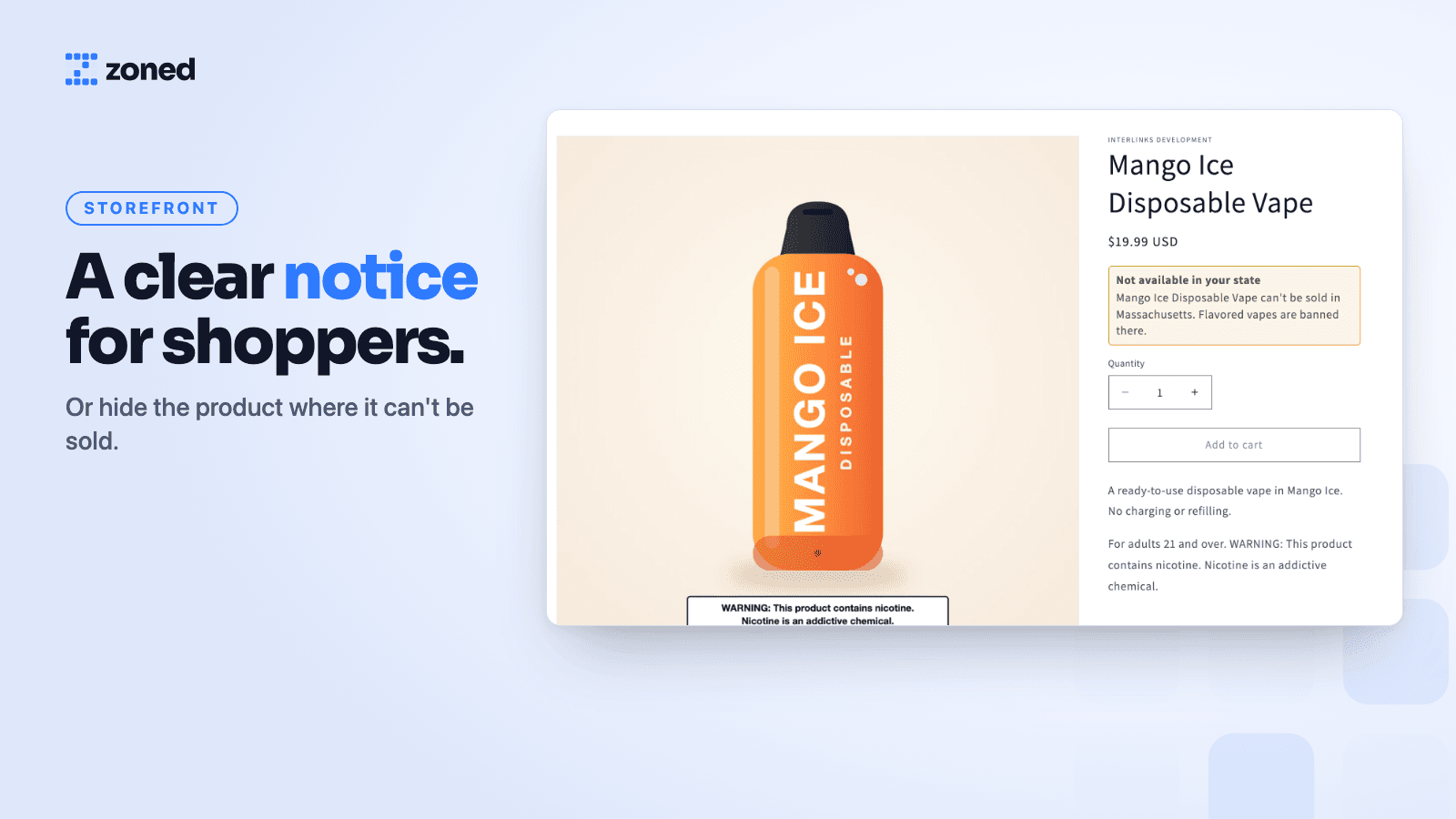
Shoppers in a restricted place stop finding the product in collections and search, or they see your notice on it. Everyone else sees your store exactly as before.
- 5
Everything is on record
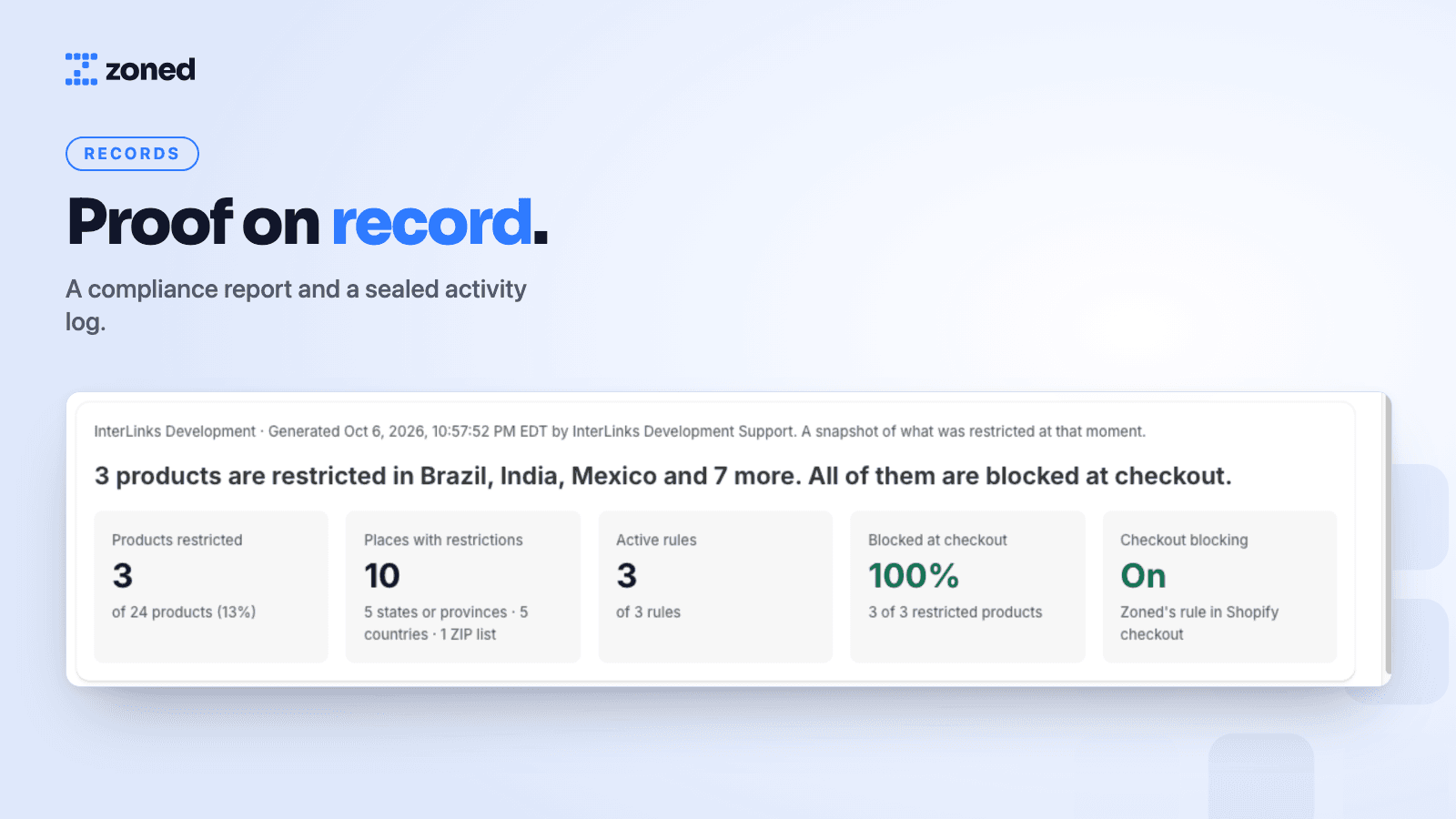
Each change is written to a sealed activity log: who changed what, and when. The compliance report lists what's restricted, where and why, ready to download.
When a law changes
Ready on the day it takes effect.
Give a rule a start date and Zoned switches it on that day, on your storefront and at checkout. Give it an end date and it switches off again. You can record the law each rule follows, so the report shows why it exists.
New products are covered too: when you tag a product or add it to a restricted collection, Zoned picks it up.
Sell it where you can.
Block it where you can’t.
Get early access 30-day free trial · From $290/year, billed through Shopify